Subscribe

RSS Feed (xml)

Powered By

Skin Design:
Free Blogger Skins

Powered by Blogger

oracle search

Showing posts with label Excel. Show all posts

Friday, June 20, 2008

Using Excel as a data source for building dimensions and cubes

Did you know you could use data stored in Excel as a source for populating dimensions and cubes created within Analytic Workspace Manager? If not then read on…

During a recent meeting we were discussing how to create a hierarchy editor for use within our various data modeling products. My response was that most people manage their hierarchies in Excel, so why not just read the hierarchy directly from Excel. As a consultant, building a multi-dimensional model was always a process of collecting two data sources for each dimension. First you walk down to the IT department and ask for access to the source table(s) to create a specific dimension. Then walk back to the users and ask them for their spreadsheets that actually contained the hierarchy they had modeled outside of the database. The dimensions modeled in most data warehouses are never quite what users want or at worst reflect structures that don’t actually relate to how the users manage their business.

Anyway, back to the meeting…so the response was: “Well we cannot read data from Excel, end of story”. After a quick chat with some of the Warehouse Builder Product Managers I found we could in fact read data directly from Excel and it is extremely easy – assuming you have your Oracle database running on Windows, otherwise this gets very expensive as ODBC drivers for UNIX are not cheap.

So assuming you have Excel and your Oracle database instance is running on a Microsoft platform how would you do get data from an Excel worksheet into your multi-dimensional model? Lets assume you are a Category Manager and you want to reorganize your brands across existing sub-categories and also create some new categories. Then you want to analyze the effect on revenue and costs across each subcategory and may be even forecast future revenue and costs as well. Most managers use Excel because it is everyone’s favorite desktop productivity tool. So you create a take a download of your product dimension data into Excel and model the new hierarchy directly within Excel. Now how to do you get that new model back into your multi-dimensional model to see the results….

Following the scenario above the steps below show how you could use the Excel Worksheet as a source within Analytic Workspace Manager to populate a dimension.

1) Step 1 – get the original Product hierarchy into Excel

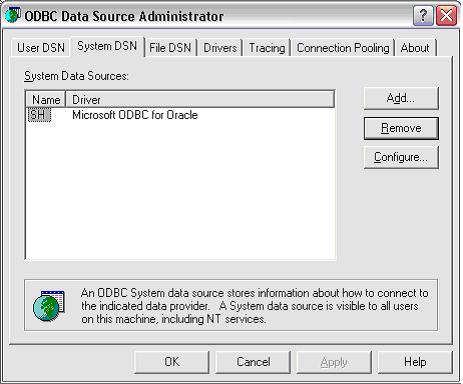
In Excel you can connect directly to your Oracle instance using the normal ODBC connection processes. Using the Data Source Administrator that is part of Windows XP you can define a new DSN source to connect to your Oracle database instance:


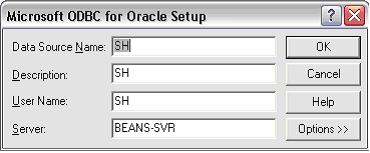
The Server references my TNSNAMES.ora entry that connects to my Oracle instance. In this case I am connecting to the SH schema. Next step is within Excel


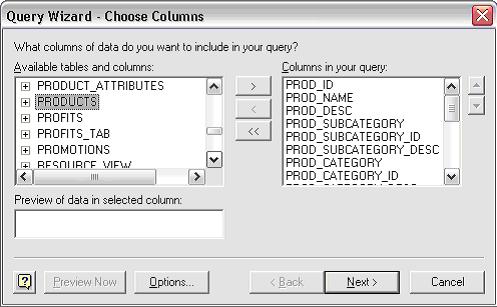
The query wizard allows me to choose a source table, in this case I have selected the Products table:


Finishing the wizard loads the data directly into Excel


Now the products table can be modified to remodel the hierarchy simply by using Cut and Paste to move the cells around. It would be really nice to be able to use the Excel Outline mode so the hierarchy could be edited and viewed like a normal hierarchy. The only problem is this implies reading an embedded total dimension within Analytic Workspace Manager and it seems this is not currently supported. However, I have a simple workaround for this. I will cover this in another blog.

OK, we have the new model ready in Excel. Next we define a named data range that covers all the dimension members. This range name is how we will refer to the data from within SQLPlus.

2) Create a new ODBC source for your worksheet

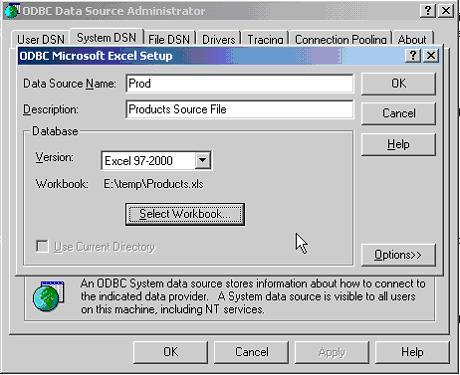
Now the spreadsheet is complete we need to copy it to the Windows server hosting our Oracle database instance. Once the file is on the server we can create an ODBC connection to the Worksheet using the Data Source Administrator tool. Note, this time we are creating the ODBC on the Server machine.


3) Configuring Oracle to use ODBC

This section will appear to be very scary, but as long as you follow these steps nothing can wrong. Trust me. After you have done one ODBC source setting up the next one is easy as riding a bike. Just remember to write down the names you use at each step.

When you install an Oracle database we also install something called heterogeneous data services. This is a little known free option that is actually very powerful.

First you need to setup a data source: In the Oracle Home on your server there is directory called “hs”, for example on my server the directory is e:\oracle\product\10.1.0\Db_1\hs. In this directory there is an admin directory and you need to create file called “initODBCName.ora”. In this example I created a file called initProdBEANS.ora. This file contains the following lines


# This is a sample agent init file that contains the HS parameters that
# are needed for an ODBC Agent.
# HS init parameters
HS_FDS_CONNECT_INFO = Prod
HS_AUTOREGISTER = TRUE
HS_DB_NAME = hsodbc

The HS_FDS_CONNECT_INFO should point to the name of you’re the reference you created in the ODBC Data Services Administrator.

Secondly you need to update the database Listener configuration file to refer to the new ODBC data source. Use notepad to edit the Listener.ora file located in your ORACLE_HOME\Network\admin directory. In the SID_LIST_LISTENER section add an entry similar to the following:

(SID_DESC =
(SID_NAME = ProdBEANS)
(ORACLE_HOME = E:\oracle\product\10.1.0\Db_1)
(PROGRAM = hsodbc)
)

The SID_NAME is the reference to the name of the file you created in the previous step minus the “init”. So in this case the file was called “initProdBEANS.ora”, therefore, the SID_NAME is “ProdBEANS”. Now reload the listener configuration file using LSNRCTL RELOAD and check the new SID is available using LSRNCTL STATUS. The new SID, ProdBEANS, should be listed.

Last step is to add a TNSNAMES entry to allow us to point to the new SID quickly and easily when we setup the database link.

PRODBEANS =
(DESCRIPTION =
(ADDRESS = (PROTOCOL = TCP)(HOST = klaker-svr.us.oracle.com)(PORT = 1521))
(CONNECT_DATA =
(SID = ProdBEANS)
)
(HS=OK)
)


4) Creating a view in the database

To be able to view the data from Excel we need to create a database link to allow us to connect to the Excel Worksheet and then a view that is based on the source data range we defined in Excel.

In SQLPlus, assuming you have the correct privileges, create a database link as follows:

Create database link ProdBEANS connect to SCOTT identified by TIGER using ‘PRODBEANS’

We can now use the database link to define the source table for our view that will pull data directly from Excel.

Create view EXCEL_PRODUCTS as select * from PRODUCTS@ProdBEANS


5) Create a mapping using Analytic Workspace Manager

This view can now be used as a source view within Analytic Workspace Manager to populate a dimension. Having created the dimension using the AWM wizards the mapping process is simply a question of drawing lines between the columns in the view to the corresponding levels/attributes in the dimension.


There you have it, using Excel as a data source for your multi-dimensional model. You can do all your hierarchy design within Excel and then quickly and easily load the results.

Oracle BI Suite Standard Edition

A few days, or maybe a few weeks ago, some over-enthusiastic, mis-informed BI vendors (actually, just one) jumped on the FUD wagon and started spreading rumours that customers should think of switching from Oracle'e BI products and onto their under-featured suite (the thought of BI vendors being mis-informed is quite a dichotomy if you think about it...) because of perceived 'uncertainty' over Oracle's BI strategy and vision.

Oracle's Business Intelligence Strategy Briefing in New York city on March 22, 2006 certainly put an end to that poppycock (link to meaning: the word is American in origin, and not British!), where Oracle made known its commitment and vision and strategy for the business intelligence market, both in the tools space and in the applications space (also read Mark Rittman's excellent initial analysis of the event and announcements - link to Mark Rittman's post).

So what happened to Discoverer: it is well and alive (of course), and has a rich pipeline of planned functionality. We in the BI group are working on defining and closing down on the features we want to include in the next release of Discoverer: product managers, development, QA, everyone!
And it is available, today (link to product page).
And you can download it from the Oracle Technology Network, today (link to download page).

As you would know, Oracle announced three packages of its BI products (link to Oracle BI page on OTN), and Discoverer is part of the Oracle Business Intelligence Suite, Standard Edition. So, what forms part of this edition?

  • Oracle BI Discoverer: Relational and OLAP data access and user-driven customizable dashboards
  • Oracle BI Warehouse Builder: Rapid design, deployment, and management of data and metadata
  • Oracle BI Spreadsheet Add-in: OLAP data access from within Excel spreadsheets
  • Oracle BI Beans: For building powerful custom business intelligence applications
  • Oracle Reports Services: High-fidelity enterprise reporting
Request for feedback:
In my new-found spirit of trying to make this blog more interactive, and to solicit opinion from the substantial readership that this blog enjoys, I request people to spare a couple of minutes (or longer if they so choose) and drop in a line or two on what they would like to see in the next release of Discoverer, and why.
You can click the comments link at the bottom of this post and leave your comments there, or if you want you can email me at abhinav.agarwal at gmail dot com and send me your feedback in complete confidence.

Lastly, I think I may possibly have been just the tiniest bit harsh in characterising this BI vendor's product offerings as under-featured.

Additional Links:
Webcasts from Oracle Business Intelligence Strategy Briefing - New York City, March 22, 2006 (link to page)
Business Intelligence & Data Warehousing Technology Center (link)

Oracle and Office Interoperability Center on OTN

People may have missed this: there is a new sub-site on OTN for "ORACLE FUSION MIDDLEWARE and Microsoft Interoperability" (link to OTN page), which brings together under one sub-site all of Oracle's products and technologies as they relate to Microsoft Office.

There is also a new doc that has been released as part of the Oracle Application Server 10g (10.1.3) release (Part No B25781-01), titled "Oracle Application Server Developer's Guide for Microsoft Office Interoperability" (link to HTML doc, link to PDF doc).

To prepare this document a virtual team comprising of product managers and development contacts from different Oracle product groups was assembled and each product team then contributed their time and resources to bring to completion chapters for their specific product (or technology). One of the takeaways that people should get from reading this document is that even today there are a lot of areas where Oracle and Office integrate and there are lots of technologies that can be leveraged to bring more of Oracle's technologies and products closer to the end user using Office as an interface.

Here is a list of the chapters from the developer's guide:

  • Understanding Microsoft Office 2003 Extensibility Technologies
    Which covers such topics as XML Schemas, Smart Technologies (Smart Documents, Smart Tags, Smart Clients, Smart This and Smart That), Task Panes, Research & Reference Services, and more.
  • Understanding Oracle Application Server Interoperability with Microsoft Office
  • Part II then gets into the specifics of building Microsoft Office Interoperability technologies using Oracle products and technologies.
  • Creating Smart Documents That Interact with Self-Service Business Processes
  • Completing Forms and Entering Data Using Microsoft Office
  • Securing Smart Documents and Web Services
  • Delivering Business Activity Monitoring Alerts and Reports to Microsoft Outlook
  • Delivering Business Intelligence Information to Microsoft Excel
    This is the chapter that covers Discoverer and all the rich and different ways you can get static as well as refreshable and live information into Excel - via plain CSV (Comma Separated Values), or Excel HTML, binary Excel with formatting preserved, or export Discoverer crosstabs to Excel as Pivot Tables, or the Web Query (iqy) format, or using the OracleBI Spreadsheet Add-In that lets you use the familiar BI Query Builder and Calculation Builder to build and edit queries inside Excel.
  • Managing Tasks and Collaborating in Microsoft Outlook
  • Provisioning User Identity Information and Alerting Microsoft Outlook Contacts
  • Accessing in-Context Web Information and Invoking an Enterprise Portal
  • Saving Microsoft Office Documents to the OracleAS Portal Content Repository
  • Delivering Enterprise Reports to Microsoft Office with Oracle Reports

Thursday, June 19, 2008

Upcoming BI releases oracle

Got hold of shiphomes being used by QA for testing and installed them on my machine. One is the Oracle BI Standard Edition, which includes Discoverer, Discoverer OLAP, the Spreadsheet Add-In, and more, while the Enterprise Edition includes the Siebel based Analytic Server components like Answers, Dashboard, Delivers, and more. This release also has many, many enhancements that had been in the works from last year. Next month and as we get sooner to the release, I shall start posting on the install and OOTB experience. If there are specific things that people would like to see screenshots of or have me write about do let me know. Also, there is a lot of collateral, demos, white papers that are being prepared, so expect a lot of information to flow your way closer to the release date.

I now have Oracle BI 10g (10.1.2) - infrastructure and middle-tier, the latest shiphomes of BI SE and EE (10.1.3), XML Publisher, an Oracle 10.2 database, a non-Oracle database, and more on the same machine, which also happens to be my work machine. Add to it more than a gig of emails, doc for the app server, tools, and the database, work related docs, Dilbert cartoons (a healthy dose of cyncism is a sine-qua-non), and of course Google Desktop Search (which itself uses up close to 2GB of hard disk space), and I had to uninstall Oracle Database XE because I was starting to run out of disk space - I like to keep at least 6-8GB free. Having 2GB of memory certainly helps though!

And a new BI blogger oracle

I am very happy to announce that very soon we shall have another Oracle BI product manager start posting on the Orale BI blog. Aneel Shenker is a product manager based out of Oracle's Burlington development center and is responsible among other things for the BI Spreadsheet Add-In. The latest release of the Spreadsheet Add-In, just round the corner, features some cool enhancements that you shall be reading about from Aneel himself. Here's welcoming Aneel!

OracleBI Spreadsheet Add-in advantages

Thanks for the introduction Abhinav...:)

I will start out with highlighting some of the advantages of using the OracleBI Spreadsheet Add-in. They might not all be quite obvious, but you will appreciate them when you use the product.

Ease of use.

  • It installs really easily. Just run the .exe file, walk through the wizard and you are done. Start Excel, and you will see the OracleBI menu.
  • We have tried to make the product intuitive to use, so the user can use familiar Excel functions. More on this below.

Formatting and printing.

  • You have finegrained control over the appearance of the data. Essentially, you have full control over the format for each individual cell, as you do in Excel
  • You can move the Query area around within the sheet using cut/paste, to make space for Charts, formulas etc.
  • You can then print the worksheet as a nicely formatted report. Although you don't have pixel perfect control, it is good enough for most purposes, and you still have live, refreshable data.

Extended analysis.

  • Add Excel formulas into the Query area just by inserting rows and columns. The add-in will preserve the formulas even when drilling, provided that the cell references are still there.
  • You can create formulas that combine data from OLAP with data from other sheets, which could be external data. This is not possible with the built-in Calculation Wizard.
  • On the other hand, the Calcuation Wizard enables you to create easily calculations such as 'Variance from Last year' without the need for downloading last years data to Excel first. The calculation runs in the OLAP Server where the data is stored, making this possible.

Using VBA.

  • The data is written into the Excel cells, just as if you typed it in, so if you have VBA skills, you can perform additional processing of data by looping through the cells, comparing with other data, creating charts of the data etc. We have added support for some new VBA calls in the upcoming release that will help you with this type of thing.

Multiple queries and databases.

  • It is possible to create multiple queries in a Worksheet, and even multiple queries against multiple databases in a workbook. This is a quite unique feature.
  • In the new release there is be a Refresh Workbook/ Refresh Worksheet feature to make it easier to reconnect multiple queries. If there are multiple connections, the login dialog will be displayed as needed.

Write-back to Oracle OLAP cubes.

  • Write-back has been added in the upcoming release. The OracleBI Spreadsheet Add-in is currently the only Oracle product that does this, short of building your own java application with BI Beans and JDeveloper. This is not trivial, as there are lots of things you have to take into account in designing your cubes and your workbooks, but this is a major feature.

Rename queries in Spreadsheet Add-In 10.1.2.2 oracle

This is the new version of the Oracle BI Spreadsheet Add-In (link to OTN) that is due out shortly. Aneel Shenker, fellow product manager and responsible for the Spreadsheet Add-In, posted a blogpost a while back introducing the new Add-In (link to post).
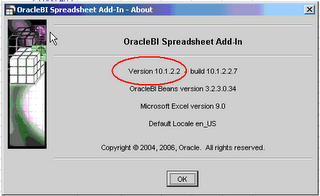
I finally got round to installing the latest internal build (see screenshot) and playing around with it a bit. The install process is as easy as it was before. Since the Add-In runs on Excel, and since Excecl is available only on Windows, the installer also is a native Windows installer that does its job in less than a minute.
One specific feature I shall look at in this post is the "Rename Query" feature.

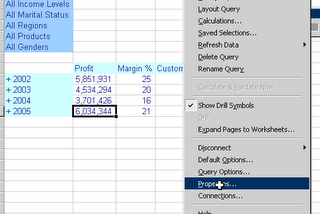
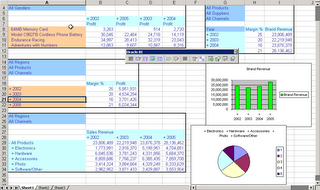
Look at the screenshot of a query I have in Excel that connects to an Oracle Database 10.2.0.2 Analytic Workspace. By default the name given to BI queries in an Excel workbook are "Query n", where 'n' keeps incrementing by 1 whenever you add a new query to the sheet. As you would suspect, lots of scope for making it more usable - especially if you happen to have several queries in your sheet. And that is exactly what we have done in this update.

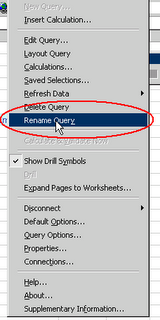
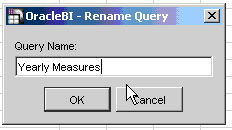
A new menu option has been added to the Add-In menu in Excel, called "Rename Query". So, if you want to rename "Query 1" to something else, like "Yearly Measures", then simply type in the new name, click 'OK' and you are done.

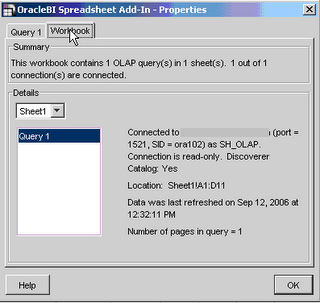
A small dialog pops up that lets you enter in a more user-friendly, descriptive name for the query. In this case I decide to name it "Yearly Measures". Click 'OK' and go back to the AddIn menu dropdown and select "Properties".

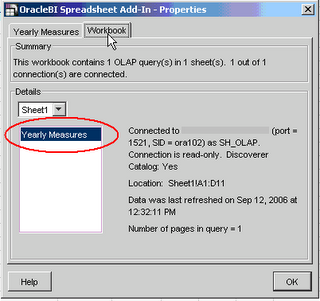
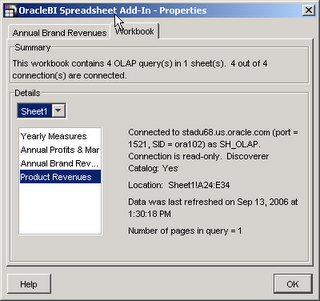
To verify that the name change has been effected, click the "Properties" menu option from the Add-In menu, and the new name will be visible.

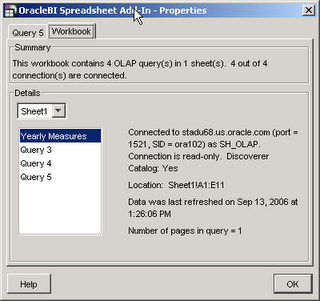
So, to take this example below, where on a single sheet I have four BI queries, the three that I added later all have the generic name:

After renaming the three queries, I now have usable, intuitive names for all my BI queries:

Spreadsheet Add-in - Refreshing multiple queries oracle

This is a commonly requested new feature in the upcoming OracleBI Spreadsheet Add-in 10.1.2.2.
A new menu option now makes it easier to work with workbooks that contain more than one query.

As you might know, it is possible to create more than one query in a worksheet in a workbook. Each query can have it's own connection, so it is even possible to run against more than one database from within one workbook or worksheet!
Of course, if you have multiple queries, you might want to reconnect/ refresh them all in one step. This new feature in version 10.1.2.2 does exactly that.

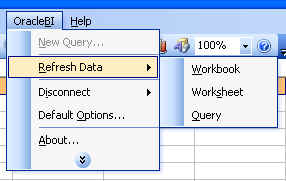
When you open a workbook with multiple queries, you now have following menu options available: OracleBI->Refresh data, then Workbook, Worksheet or Query.


If you pick Workbook or Worksheet and multiple queries are involved, the login dialog will be displayed. It might be displayed multiple times, if the queries have different connections.
Once you have typed in username/ password, the add-in will loop through all the queries, and reconnect/ refresh the data.

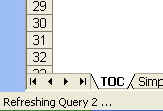
In the lower left corner you will see a message on the status bar, that will display the name of the query being refreshed. As Abhinav mentioned, you can now rename queries, so instead of seeing "Refreshing Query 2..." you might see "Refreshing Sales Query 2006..." and so on.

Sunday, June 15, 2008

OLAP Workshop Part 2 : Understanding OLAP Technology


OLAP Workshop Part 2 : Understanding OLAP Technology


In the last posting I hopefully explained some of the basic concepts behind OLAP. In this posting I want to explore how those basic concepts are exposed by the various OLAP aware ETL and reporting tools provided by Oracle and other BI vendors.

Architecture of Oracle OLAP


For a long time now Oracle has been unique in the marketplace. With Oracle Database 9i, 10g and 11g, all data (relational and multidimensional) is stored in one Oracle database. Only Oracle OLAP provides native multidimensional data types within the database.

A high-level architectural view of the Oracle OLAP option contains three parts:

Oracle Database 10g OLAP option, which comprises:

  • Multidimensional data types
  • OLAP calculation engine
  • Open-access interfaces
End-user tools, which provide access to OLAP data for a wide spectrum of analytic needs
Administrative tools used to create and manage multidimensional data types. Oracle provides two administrative tools that can be used to create multidimensional data types in Oracle Database 10g:
  • Oracle Warehouse Builder
  • Analytic Workspace Manager
The following sections examine these three layers in more detail.

Components of Oracle OLAP
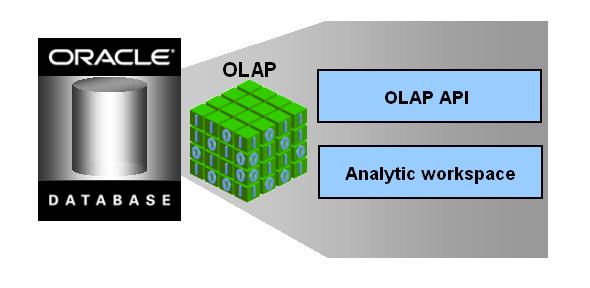
With the Oracle OLAP option, you get two powerful arenas of functionality:
  • OLAP API and the analytic workspace (AW).
  • OLAP API Functionality


Analytic Workspace The Analytic Workspace is the container for the multidimensional data types and leverages the multidimensional calculation engine of the OLAP Option. The AW also provides a standard SQL interface to the multi-dimensional model. This provides an industry standard access layer that can be used by any BI reporting tool that generates SQL commands, from SQL Developer, to Application Express on to more sophisticated tools such as BI EE.

The AW also povides an XML API for administration, and a programming language (OLAP DML).

Multidimensional Data Store The OLAP option provides true array-based multidimensional data types within the Oracle database. These multidimensional data types are contained in special tables in Oracle called analytic workspaces. Some data types are used to store data, whereas others are calculated instantaneously using the multidimensional engine.

Multidimensional Calculation Engine The OLAP Option’s multidimensional engine includes an impressive library of multidimensional-aware calculation functions and support for planning functionalities such as statistical forecasts, models, allocations, projections, and “what-if”scenarios, in the context of Analytic Workspaces. The multidimensional engine interacts with the multidimensional data types in the analytic workspace in the Oracle database.

The Oracle OLAP option provides a specialized Java API that developers can use to exploit the full power of the Oracle OLAP option by using advanced dimensionally-aware tools and applications. This API is used by Oracle Business Intelligence tools such as OracleBI Beans, OracleBI Discoverer, OracleBI Spreadsheet Add-In, and Oracle Reports OLAP Plug-in to provide a true multi-dimensional query and calculation environment.

OLAP DML The OLAP DML is an extremely powerful and analytically rich feature of the AW. It is a dimensionally-aware, high-level procedural language that runs in the database and exploits the multidimensional engine and multidimensional data types.

With the Oracle OLAP option developers can exploit the OLAP DML to add more sophisticated calculations and analysis to AWs and to extend the functionality of applications that access them. The OLAP DML is briefly introduced in the lesson titled “Previewing Advanced Oracle OLAP Features.”

AW API The AW API is a Java API that is used to define and physically build multidimensional analytic workspaces inside Oracle Database 10g. The AW API is used by administrative tools such as Analytic Workspace Manager and may be used by developers, if required, to enhance and extend analytic workspaces as necessary for a specific application.

Query Access to Oracle OLAP
Different users with different end-user tool requirements can all access the same data, taking advantage of the same calculations, and benefit from the same security, scalability, performance, and availability of the Oracle database.


OLAP API The OLAP API is designed to work with both multidimensional data types and relational data types in the Oracle database.

  • The API enables you to directly access multidimensional data types in the AW.
  • To access relational data types, you can register a relational physical dimensional model (such as a star or snowflake schema) to the Oracle Database OLAP Catalog.

Therefore, tools that use the OLAP API can be deployed against multidimensional analytic workspaces or suitable relational schemas that are registered to the Oracle OLAP option’s metadata layer.


Many Oracle source business intelligence tools take full advantage of the multidimensional query data model provided by the Oracle OLAP option through the OLAP API. These include OracleBI Spreadsheet Add-In, OracleBI Discoverer, OracleBI Beans, and OracleBI Reports.

SQL Interface
Unlike other multidimensional OLAP server products, Oracle OLAP provides not only a specialized API but also industry-standard SQL to access multidimensional data types.

You can use a simple SQL query with relationally oriented tools and applications to gain access to the multidimensional data types in the Oracle database. As a result, your SQL-based applications (such as report generators and ad hoc query tools) can access multidimensional data and calculations managed by the Oracle OLAP option.
SQL and PL/SQL are also used to manage and maintain multidimensional analytic workspaces and to move data between relational and multidimensional data types within the Oracle database.

For example, Oracle Application Express is an easy-to-use tool that is supplied with Oracle Database 10g for Web access to the Oracle database. Oracle Application Express is an example of a SQL-based application with no built-in OLAP knowledge that can nevertheless leverage the power of Oracle OLAP.

Many third-party tools from independent software vendors and Oracle partners, such as Arcplan, Business Objects, Cognos, and a large and growing number of business intelligence vendors throughout the world, access OLAP data through the Oracle OLAP option. Some of these vendors’ tools leverage the OLAP API, whereas others exploit the SQL query interface.

Dimensionally Aware Products
Oracle BI Spreadsheet Addin OracleBI Spreadsheet Add-In makes it easy to access OLAP data through the familiar spreadsheet environment of Microsoft Excel. After installation of OracleBI Spreadsheet Add-In, “OracleBI” appears as a new menu item in Excel. By using OracleBI Spreadsheet Add-In, you can establish a secure connection to the OLAP data source and use Excel as the front-end access tool to the data in the database.

Here are some of the features of OracleBI Spreadsheet Add-In:

  • It combines the flexibility and familiarity of Excel and the power, scalability, and security of the Oracle OLAP option.
  • OracleBI Query and Calculation Builders: After the connection is established, you can use the wizard-driven interface to drill, pivot, page through large cubes, and create reports.
  • Access to native Excel features
    • Powerful data-formatting features of Excel,
    • Combine Oracle OLAP data with other Excel data
    • Write Excel macros that leverage all your data.
    • Create formulas and graphs in Excel
Excel users can quickly and easily combine the powerful analytic capabilities of Oracle OLAP with standard Excel functions that you know and use each day.


When using Excel OLAP calculations are performed directly in the database: The benefit of using OracleBI Spreadsheet Add-In is that you no longer need to download massive amounts of data to your spreadsheet. Oracle Database 10g OLAP performs all the OLAP calculations quickly and efficiently in the database. The calculations and business logic are defined only once in the database and then shared across the user community.

For more information goto the Spreadsheet Addin home page on OTN:

Spreadsheet Addin OTN Home Page
http://www.oracle.com/technology/products/bi/spreadsheet_addin/index.html

OracleBI Spreadsheet Add-In Feature Overview
http://www.oracle.com/technology/products/bi/spreadsheet_addin/htdocs/feature_overview/oraclebi_spreadsheet_addin_fov.htm

Introduction to OracleBI Spreadsheet Add-In
http://www.oracle.com/technology/products/bi/spreadsheet_addin/viewlets/olapsa_welcome_viewlet_swf.html


OracleBI Discoverer
This is another Oracle Business Intelligence tool that can directly access Oracle OLAP data. Discoverer Plus OLAP is an ad hoc query, reporting, analysis, and Web-publishing tool. It enables you to:

  • Perform OLAP query, reporting, and analysis on both multidimensional data models (analytic workspaces) and relational OLAP data models (star or snowflake schemas).
  • Access and analyze multidimensional data from your company’s database without having to understand complex database concepts. The wizards and menus of Discoverer Plus OLAP guide you through the steps to retrieve and analyze multidimensional data.
Because Discoverer Plus OLAP understands the dimensional data model, you formulate your queries in the language of business — you use real dimensions, hierarchies, levels, and measures through a simple interface. You can also exploit the rich features of OLAP through dimensionally-aware query and calculation builders, thereby simplifying the tasks of defining queries and calculations. Worksheets that are authored in Discoverer Plus OLAP are published to the Web, where Discoverer Viewer and Oracle Portal users can access them.


For more information goto the Discoverer home page on OTN:

Discoverer OTN Home Page
http://www.oracle.com/technology/products/discoverer/index.html

Creating OLAP worksheets
http://www.oracle.com/technology/products/discoverer/files/viewlets/1012_plus_olap_creating.html

Modifying OLAP worksheet properties
http://www.oracle.com/technology/products/discoverer/files/viewlets/1012_Plus_OLAP_Modifying.html


OracleBI Beans
OracleBI Beans is used by business intelligence and OLAP developers. OracleBI Beans is used for developing applications such as Oracle Enterprise Planning and Budgeting and tools such as OracleBI Discoverer and OracleBI Spreadsheet Add-In. BI Beans is also available to third-party software developers to accelerate development of custom OLAP applications.


BI Beans is a set of standards-based Java beans that is integrated into Oracle JDeveloper. It provides analysis-aware application building blocks designed for the Oracle OLAP option of the Oracle database. Using BI Beans, you can create customized business intelligence applications that take advantage of the robust analytic capabilities of Oracle OLAP.

Applications can include advanced features such as interactive user interfaces, drill-to-detail reports, forecasting, and what-if analysis. BI Beans includes Java beans for acquiring data from the Oracle database, presenting data in a variety of crosstab and graph formats, and saving report definitions, custom measures, and data selections.
Using BI Beans, you can develop business intelligence applications from Oracle JDeveloper, or any Java application development environment, and deploy them through any application server as a thin or thick client.

For more information goto the BI Beans home page on OTN:

BI Beans OTN Home Page
http://www.oracle.com/technology/products/bib/index.html

Oracle BI Beans Feature Overview
http://www.oracle.com/technology/products/bib/1012/htdocs/feature_overview/BI_Beans_Feat_Oview.htm

Developing a Dashboard Application with Oracle BI Beans
http://www.oracle.com/technology/products/bib/1012/viewlets/MS Developing Executive Insight.html


SQL Aware Products
Oracle Business Intelligence EE
Oracle Business Intelligence Suite Enterprise Edition 10g, Release 3 (BI EE 10g ) delivers significant new product enhancements to further enable enterprise-wide BI, including integration with Oracle OLAP. In this release, Oracle's native multidimensional data model -- the analytic workspace (AW) -- is made accessible to BI EE 10g by creating the required metadata in Oracle BI Administration Tool. The AW data is exposed to the BI EE 10g product stack, and the OLAP engine is leveraged for analysis of that data.

Creating access to Oracle OLAP data is a simple 3-step process. Each these steps is covered in detail as part of an training document provided as an Oracle by Example. This explains how to: prepare an AW for access by BI EE 10g; create the r
equired metadata using Oracle BI Administration Tool; and create analytic reports of AW data using Oracle BI Answers


For more information goto the BI EE home page on OTN:

BI EE OTN Home Page
http://www.oracle.com/technology/products/bi/enterprise-edition.html

Ad-hoc query and reporting
http://www.oracle.com/technology/products/bi/enterprise-edition-platform-components.html

Oracle By Example:
These lessons are designed for completion in the order that is shown below. Each subsequent lesson depends on the completion of the previous lesson. Click on any of the links below to begin.

Lesson 1: Preparing an Analytic Workspace for Access by Oracle BI EE 10g
http://www.oracle.com/technology/obe/obe_bi/bi_ee_1013/olap/PrepareAW.htm

Lesson 2: Creating BI EE 10g Metadata for the Analytic Workspace
http://www.oracle.com/technology/obe/obe_bi/bi_ee_1013/olap/CreateMetadata.htm

Lesson 3: Querying OLAP Data Using Oracle BI Answers
http://www.oracle.com/technology/obe/obe_bi/bi_ee_1013/olap/QueryData.htm


Oracle Application Express

The Oracle OLAP option provides a SQL interface to access multidimensional data types, thus enabling any SQL-aware tool to access data in the analytic workspace.
Oracle Application Express is an easy-to-use report builder that is provided with Oracle Database 10g to simplify the creation of database-centric interactive Web pages.

Thus, with the Oracle OLAP option, you can use Oracle Application Express to provide Web-based access to key performance indicators such as profitability, sales, units shipped, trends, and period-to-period comparisons and forecasts.
It provides support for some interactive reporting (for example, you can use hypertext links to call more SQL queries), but it is not a fully interactive analysis system like OracleBI Discoverer or like other specialized business intelligence tools.


The Web report in the slide is generated with the following SQL code:

SELECT region_desc, sales, units, cost, profit,
ROUND(pct_margin ,3), fcast_sales
FROM mysalesaw_view
WHERE time_desc = TO_CHAR(ADD_MONTHS(SYSDATE,-3), 'Mon-YY')
AND product_level = ‘ALL'
AND channel_level = ‘ALL'
AND customer_level= 'REGION'
ORDER BY sales DESC;

Because the multidimensional data model presents data to the query layer as if it were precalculated, prejoined, and preaggregated, your query does not need to perform any calculations, joins, or aggregations. SQL code is thus very simple to write and fully leverages the power of the AW. The multidimensional engine returns the requested data from the AW extremely efficiently and quickly, even if the AW is calculating much of the data instantaneously.

For more information goto the Application Express home page on OTN:

Application Express OTN Home Page
http://www.oracle.com/technology/products/database/application_express/index.html

What is Oracle APEX?
http://www.oracle.com/technology/products/database/application_express/html/what_is_apex.html

3.0 New Features
http://www.oracle.com/technology/products/database/application_express/html/3.0_new_features.html


Tools to Build an Analytic Workspace

Two tools are available for IT and power users to easily build analytic workspaces (AWs) and load them with data (for analysis with tools such as OracleBI Beans, OracleBI Discoverer, and OracleBI Spreadsheet Add-In):


Shared API for AW Creation Both OWB and AWM use the AW XML API to build and maintain AWs. Therefore, an AW model that is created by AWM can be incorporated back into the OWB repository to provide version control, lineage, and impact analysis if changes to the original source systems are required.

Note: Both OWB and AWM generate scripts that may be called and scheduled from PL/SQL scripts or other scheduling processing tools, if required.

Analytic Workspace Manager (AWM) AWM is a tool that makes it easy to build and maintain AWs from a suitable (clean) data source. AWM is used on source data that has been cleaned by the ETL process.

The clean data may have been created by Oracle Warehouse Builder or by another ETL process; your IT department would have a preferred method of preparing data.
AWM is focused on the simple task of building AWs. It has an intuitive wizard-based user interface and is therefore suitable for both IT and power users.

AWM supports the complete process of creating an AW from beginning to end in a single, dimensionally-aware design environment.

The creation process includes three easy steps:
  • Design the dimensional model.
  • Map the dimensional object to the source data.
  • Load the data into the AW.
After you have performed these steps, the AW is immediately available for your tools to query.

For more information goto the OLAP home page on OTN:

OLAP OTN Home Page
http://www.oracle.com/technology/products/bi/olap/olap.html

Analytic Workspace Manager 10.2.0.3.0A
http://www.oracle.com/technology/software/htdocs/devlic.html?url=http://download.oracle.com/otn/java/olap/AWM_102030A_Win32.zip

Analytic Workspace Manager 10g
http://www.oracle.com/technology/products/bi/olap/1451_AWM10g.pdf

Improve SQL Based Business Intelligence Tools with Oracle OLAP 11g
http://www.oracle.com/technology/products/bi/olap/Oracle_OLAP_11g_TWP.pdf

Leveraging Business Intelligence Tools
http://www.oracle.com/technology/products/bi/olap/40261_leveragingtools.pdf

Analytic Workspace Manager 10.2.0.3.0
http://www.oracle.com/technology/products/bi/olap/viewlet/AWM102_viewlet_swf.html


OracleBI Warehouse Builder 10g R2 (OWB) OWB is an advanced management and ETL tool, used by developers and database administrators to build and manage data warehouses in the Oracle database. OWB manages the entire process of collecting and cleaning data.

  • Collecting data: OWB collects data from the various operational systems that feed the data warehouse.
  • Cleaning data: OWB performs various required transformations and data-cleansing activities (for example, dealing with inconsistencies between different source systems, matching and merging data from them, and processing missing or erroneous data).

The result is a set of clean tables in the Oracle database.
  • OWB includes advanced data-profiling features.
  • OWB enables data warehouse developers to optionally populate relational star or snowflake schemas or multidimensional AWs for access by the Oracle OLAP option.
  • OWB is, therefore, a professional IT tool.

Warehouse Builder is free to database customers and this free functionality includes deploying OLAP schemas. Some Warehouse Builder features are costed options and these include:
  • Enterprise ETL
  • Data Quality
  • CRM/ERP Connectors
For more information goto the Warehouse Builder home page on OTN:

OTN Home Page
http://www.oracle.com/technology/products/warehouse/index.html

Oracle Warehouse Builder 10gR2 and Oracle OLAP
http://www.oracle.com/technology/products/warehouse/pdf/OWB10gR2 and Oracle OLAP.pdf

Benefits of a Multi-dimensional Model
http://www.oracle.com/technology/products/warehouse/pdf/Benefits of a multi-dimensional model.pdf


Summary
In this latest post you should have learned how to describe:
  • Oracle OLAP and its components
  • The flexibility of (and options for) accessing Oracle OLAP data
  • Oracle business intelligence tools and applications that access the analytic workspace in the Oracle database
  • Oracle administrative tools that enable building and maintenance of analytic workspaces