Subscribe

RSS Feed (xml)

Powered By

Skin Design:
Free Blogger Skins

Powered by Blogger

oracle search

Showing posts with label UIX. Show all posts

Friday, June 20, 2008

Add A Quick Export Link to the Worksheet Page

It's been a while since I posted a 'UIX hack' post. In fact, too long. So it was time for one. This one had actually been sitting with me for some time, but had been buried in my email inbox. Sometime back a bright fellow from our Viewer development team had conjured this up in response to a customer query and I thought it would be very useful to publish as a post. There are actually two parts to it - this is only the first part.

As I usualy do, I shall illustrate this with lots of screenshots.

This, on the left, is a screenshot of a Discoverer worksheet in Viewer. On the left you can see the 'Actions' pane with all the regular links. The one that I have circled in red is the one of interest. It says 'Quick PDF'. New, isn't it? What is it? Well... it's a quick link to let you export the current worksheet to the Acrobat PDF format without having to go to the 'Export' worksheet page, select the format of your choice, and then click the 'Export' button to initiate the export creation process. While the link says 'Quick PDF', it could just as well have said 'Get the PDF', 'Gimmee the PDF' or something else. The point of this link is that sometimes users have the urge to export every Discoverer worksheet in sight to some other format, like Excel, PDF, CSV, XML, etc... So a quick link saves time.

So what happens when you do click the 'Quick PDF' link? It's the same as selecting the PDF export format option from the Export formats list and click the 'Export' button. The worksheet is exported to the PDF format, and the generated PDF file is presented as a link for the user to click and open in Acrobat.
This page is the standard Discoverer Viewer page that you would see if you went through the Export page first.


This above is the exported worksheet inside Adobe Acrobat.

So, the next, and logical, question is how to get this in the first place? The 'Quick PDF' link, and how to tie it to the PDF export action. As it turns out, it's really, really simple.

If you are not familiar with UIX or how Discoverer UIX files look like, I would suggest you read some of my earlier UIX hack posts - that will save me time and you some unwanted grief. Links to those posts are present at the end of this post (link).

Now that you have read those posts let's get down to brasstacks.

Browse to the folder where you your BI (or App Server if you don't have the standalone BI install) Oracle Home is. Then browse to the "Oracle_BI_Home\j2ee\OC4J_BI_Forms\applications\discoverer\discoverer\".... folder as shown in the screenshot below. This is the folder where all the UIX files used in rendering Discoverer Viewer (and Discoverer Portlet Provider pages also for that matter) are located.

Find the 'worksheet.uix' file and make a backup of it before you even so much as take a long look at it. (Working with files that you do not have a backup for is like looking at the sun without wearing sunglasses. Sooner or later something bad is going to happen). Having done that - taking a backup - open the file using a text editor like Notepad, TextPad, vi, JEdit, etc... Scroll down the file till you come to lines that look like the screenshot below.
Just above these lines insert the following lines (if the lines appear garbled it's because Blogger is not yet smart enough to escape <> with with & l t ; and & g t ; )


javascript:discoSWP('aForm','


exportdata?event=ExportData&exportType=7');


Having done that, save the Worksheet.UIX file, close it, and login to the Application Server control. Restart the OC4J_BI_Forms instance. This may take a few minutes, so be patient: good things come to those who wait for them (better things may come to the impatient ones....).
Once the component has restarted re-login to Viewer and open any worksheet. You should see the 'Quick PDF' link now. If not, close and restart your browser (this seems to be an issue more with Firefox than IE).


So, there are probably two questions, at least, that you are itching to ask.
How could Australia score 434 and still end up on the losing side (link)???

The second question is how do you change the link so that it generates an Excel or HTML or Pivot Table or TXT or any other export? Because, you would have noticed that the URL associated with the PDF export action has an id associated with the exportType URL parameter (...exportdata?event=ExportData&exportType=7). The intrepid ones among you could start cycling through all values from 1 to a crore and see which ones map to which export formats. For the patient ones, I shall be posting another post, later this week, where I list out all the different export format ids, including how to customize the Export formats dropdown list.

Related UIX Hacks posts:
UIX Hack 1 - Removing the 'Connect Directly' section
UIX Hack 2 – Remove the Last Refresh Date from Discoverer Portlets
UIX Hack 3 - Removing the 'type' column from a portlet
UIX Hack 4 - Removing the worksheet breadcrumb

The Disclaimer:
  • I am NOT suggesting that you go around and muck around with these UIX files.
  • Any changes you make to UIX files are unsupported.
  • Oracle Support will not support your installation if you run into problems as a result of making changes to these UIX files.
  • You will have to reproduce any errors on an instance without these UIX changes for Oracle Support to help you.
  • Any upgrades or patches you apply may overwrite custom changes you make to your UIX files.
Changed the post time and date to Mar 13, 3:03pm

How To Customize The Export Formats List in Viewer

In my prevdescribed how to add a quick export link to the main Viewer worksheet page that would let you export the currently opened Discoverer worksheet to a supported format.

This is kind of a followup post to the earlier one. Here I show how it is possible to construct a Viewer export page with only certain export formats available.
To begin with, it is important to know which export format corresponds to which 'resource key'. Not all formats are supported for both relational and OLAP worksheets, as you would have seen. Some, like the HTML, CSV, PDF, etc... are supported on both relational and OLAP connections, while some others like 'Excel as Pivot Table' are supported on only relational connections, while there are some export formats that work for both relational and OLAP worksheets.
This is the list of supported Export ids and resource Keys For Discoverer 10.1.2.45.46C (this also works for 10.1.2.48.18):

ID Resource Key Extension Supported Connection
0 export.type.csv (*.csv) Relational\OLAP
1 export.type.excel (*.xls) Relational
2 export.type.excel.pivot (*.xls) Relational
3 export.type.html (*.htm) Relational
5 export.type.reports (*.xml) Relational
6 export.type.text (*.txt) Relational\OLAP
7 export.type.pdf (*.pdf) Relational\OLAP
8 export.type.dif (*.dif) Relational
9 export.type.slk (*.slk) Relational
10 export.type.wks (*.wks) Relational
11 export.type.prn (*.prn) Relational
12 export.type.gif (*.gif) Relational\OLAP
13 export.type.png (*.png) Relational\OLAP
14 export.type.iqy (*.iqy) Relational Non SSO
16 export.type.html.excel (*.zip) Relational\OLAP
17 export.type.excel (*.zip) OLAP


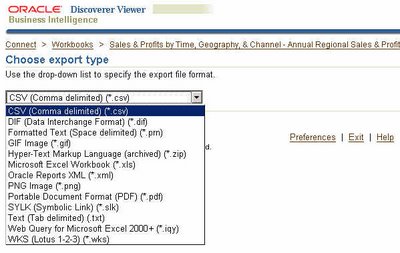
Getting down to the nitty-grtty, this is how a regular Viewer worksheet export page looks like. I have expanded the dropdown so you can see the differences between relational and OLAP connections.
This is the list of export formats you get to see for relational worksheets:
This list is missing the "Excel as Pivot Table" because the worksheet is a table and not a crosstab, in case you were wondering.
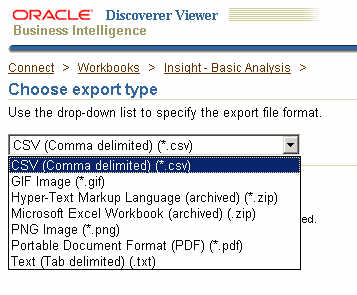
And this below is the export formats list you get to see for OLAP worksheets:
This then is the Viewre page that you want to modify. Actually, it is only the dropdown that you would be interested in modiying, removing certain export formats that may not be required andpresent a shorter, cleaner list to end users.
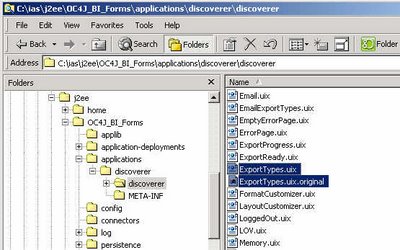
To do that (and you should be familiar with this by now), you have to locate where the UIX file for this export page resides. If you are unfamiliar with UIX then see some of my previous UIX Hack posts. Saves me time, saves you unwanted grief. After all, I am not a UIX expert by any stretch of the imagination, nor is it my intent to start a discourse on UIX here. Jonas Jacobi has a very good blog (link to blog) on UIX technologies, aptly called "Jonas Jacobi's JSF, ADF Faces and ADF UIX blog".

So, using Windows as my installation platform, I have Oracle Application Server 10g (10.1.2) installed on c:\ias, and that is where I go to.

i.e. "c:\ias\j2ee\OC4J_BI_Forms\applications\discoverer\discoverer"

Here you shall find a lot of files that have the extension "UIX". Yippee... so far so good. Be careful now... the intent is not to muck around with every .uix file here; rather, it is only one file that we are interested in mucking up (I think I shall have to explain in some other post why I have this fascination for the word 'muck'). Therefore, as is suggested before people embark on mucking expeditions, make a backup of the "ExportTypes.uix" file first and foremost. Ah yes, also read the disclaimers at the end of this post.

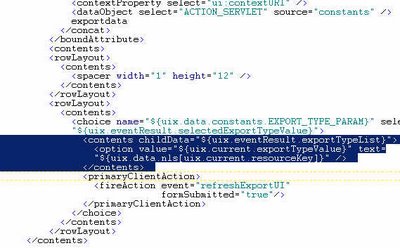
Now, here is where the lobotomy starts. Open the "ExportTypes.uix" file using a text editor like Notepad, TextPad, JEdit, et.... and scroll down to the place where you find lines like these:
Find the contents inside the "contents" tag:


And replace them with the following lines:


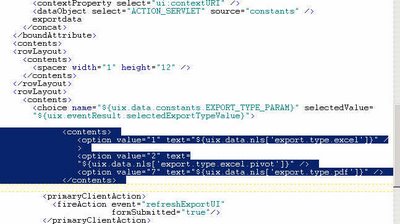
If the lines above do not display properly, you can also use these screenshots for reference.
The highlighted lines below are what you have to search for in the ExportTypes.uix file:

And replace them with the highlighted lines below:

Having done these changes, you know what to do:
- Save and close this file.
- Restart your OC4J_BI_Forms instance. To do this you haveto login to your Oracle Application Server Control.
- Close and restart your browser.
- Connect to Discoverer Viewer, open up a worksheet, and navigate to the 'Export' page.

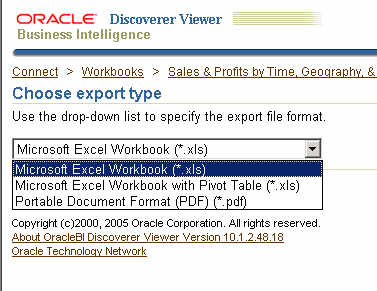
See the dropdown now. The dropdown now shows you only three export formats. You can now go back and edit the UIX file to add or remove as many export formats as you want. You have all the information you need available in this post now.
Ok... that's about all I have for this post. I do have a couple of things before I end this post.
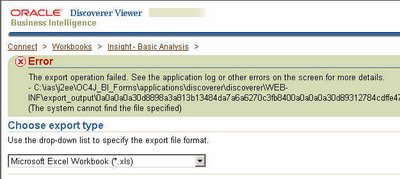
If you specify a relational only export format while trying to export an OLAP worksheet (and vice-versa) you will get an error. What error? An error like the one shown below:

This is because when you let Discoverer construct the export formats dropdown list it know which formats to include for relational and which ones to include for OLAP. But here you have explicitly specified the export formats to show in the dropdown, and it is the same options that will be displayed, irrespective of the worksheet type, whether relational or OLAP. Therefore when you select a relational worksheet and specify that it be exported in an OLAP available format, then you are aksing for problems. Now, one could argue that the product should handle this instead of spitting out an error. But, firstly, it is handling matters by throwing out an error instead of doing something weird like not responding or churning out some garbage. Secondly, the whole notion of hacking UIX files is not encouraged or supported... you are basically hacking the product to do something that it was not built to do in the first place. That UIX technologies make so many things possible is an advantage, but needs to be used judiciously.
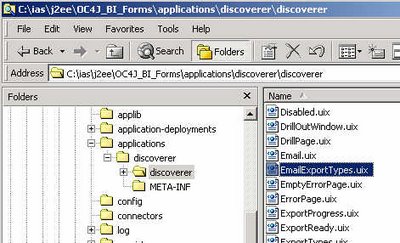
Oh, another thing... there is one more place in Discoverer Viewer where you can select the export type. Guess where? The email export type selection page! Remember? When you specify that a worksheet be emailed, you have to first select a format in which the worksheet should be emailed as. And here also you can customize the export formats dropdown to exclude certain export types. To do that you have to follow the same steps as above, but the UIX file that needs to be modified is "EmailExportTypes.uix": see the screenshot below. The file is in the same folder as where the "ExportTypes.uix" file is located. And the changes are the same, so I am not going to repeat them here.
ious post (link to post) I

Related UIX Hacks posts:
UIX Hack 1 - Removing the 'Connect Directly' section
UIX Hack 2 – Remove the Last Refresh Date from Discoverer Portlets
UIX Hack 3 - Removing the 'type' column from a portlet
UIX Hack 4 - Removing the worksheet breadcrumb
UIX Hack 5 - Add A Quick Export Link to the Worksheet Page

The Disclaimer:

  • I am NOT suggesting that you go around and muck around with these UIX files.
  • Any changes you make to UIX files are unsupported.
  • Oracle Support will not support your installation if you run into problems as a result of making changes to these UIX files.
  • You will have to reproduce any errors on an instance without these UIX changes for Oracle Support to help you.
  • Any upgrades or patches you apply may overwrite custom changes you make to your UIX files.